

Team and permissions
3 min read
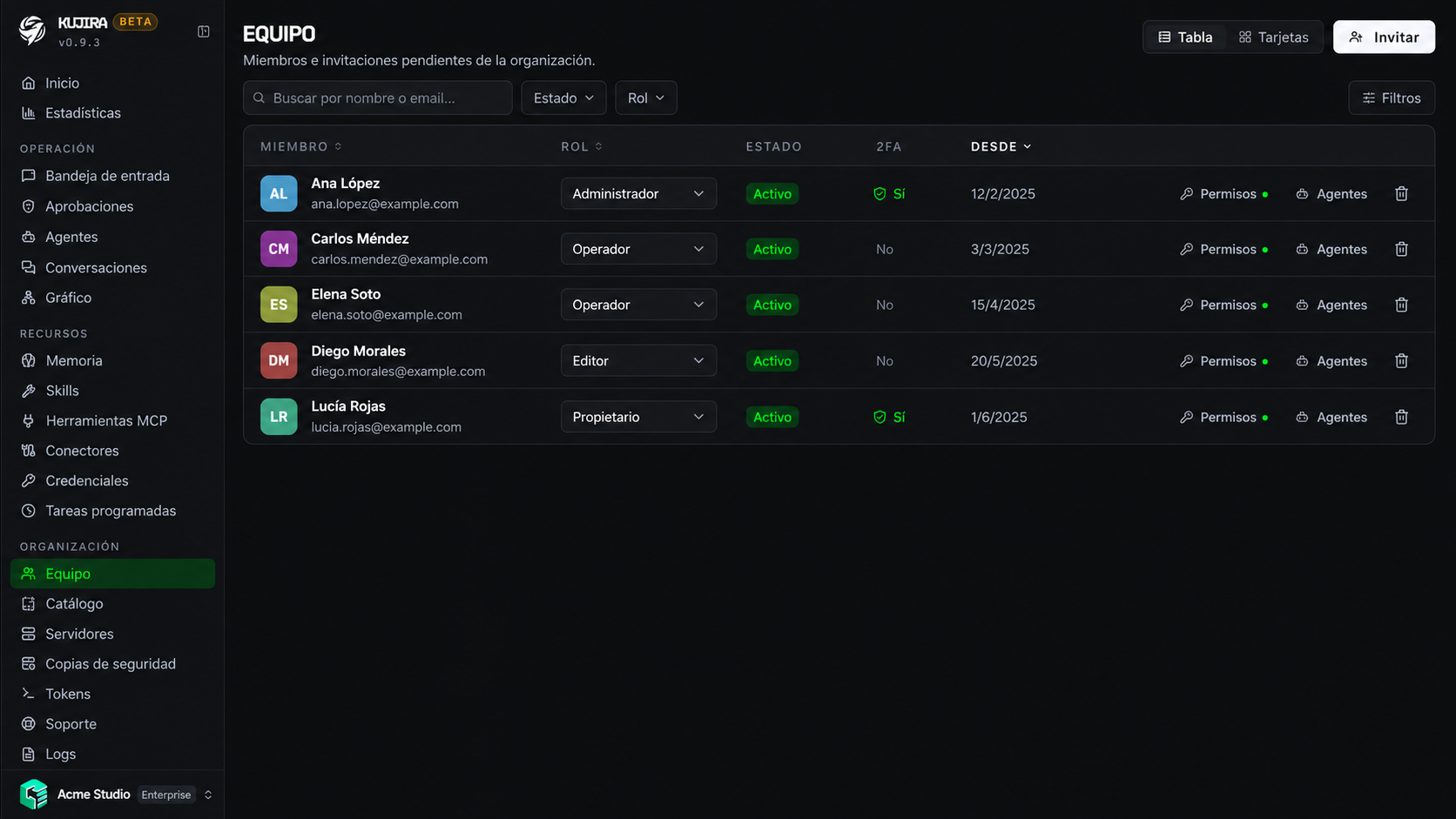
In Team, you invite the people who will work in the organization and define which resources they can manage. The table brings together members and pending invitations, with filters by status, role, and two-factor authentication.
Invite someone
Open Team
In the sidebar, go to Organization > Team and select Invite.
Enter their email and role
Enter the person's email address and choose their initial access level. You can adjust it later.
Send the invitation
The person will receive an email to sign in or create an account. The invitation remains pending until they accept it.
Roles
A role provides a baseline set of permissions. You can then customize each member's permissions from Permissions. Nobody can assign a role with more access than their own.
| Role | Typical use |
|---|---|
| Owner | Full control of the organization, including its configuration and deletion. |
| Administrator | Manages operations: team, agents, servers, billing, and the activity log. |
| Operator | Works with the resources they have been granted, such as agents, conversations, memories, or tasks. |
| Observer | Can only view the resources and agents assigned to them. |
Start with the minimum access
Assign the most restricted role that lets each person do their work. You can always expand access when needed.
Custom permissions
A role is a starting template. To tailor a member's access, select Permissions in their row: a matrix opens where you can enable or remove specific actions. The owner always has full access and their permissions cannot be changed.
Permissions are grouped by the resource they affect:
| Group | Examples of actions |
|---|---|
| Organization and team | View or edit the organization; invite, edit, or remove members. |
| Agents and approvals | Create, configure, or delete agents; view and resolve approvals. |
| Context and tools | Manage memories, skills, MCP tools, connectors, and contact profiles. |
| Credentials and connected services | View, edit, reveal, or assign credentials; manage GitHub and model providers. |
| Operations and infrastructure | Manage servers, scheduled tasks, attachments, backups, and service tokens. |
| Supervision and administration | View conversations, activity, and the communications graph; view or manage billing and support. |
Most groups distinguish between view, create, edit, and delete. Some add specific actions, such as resolving approvals, revealing a credential, restoring a backup, or subscribing to a plan.
Review sensitive permissions
Grant permission to Reveal credentials or manage model providers, backups, service tokens, or billing only to people who genuinely need that access.
Agent access
Administrators and owners have access to every agent. For operators and observers, access is assigned explicitly from the Agents button in their profile:
- Chat lets them use the agent within that person's permissions.
- Manage lets them configure it as well as use it.
- No access hides the agent from that person.
The same relationship can be adjusted from each agent's access tab. Granting access to an agent does not automatically reveal credentials or other organization resources.
Review and remove access
Use the table to change a role, review specific permissions, or remove a member. You can also see who has enabled two-factor authentication.
Personal conversations do not become visible to other members simply because they are administrators. To understand visibility for shared threads, see Agent Desk.
Before removing someone
Check the tasks, credentials, or integrations that person may manage. Removing them blocks their access to the organization, but does not automatically reassign those resources.